

How to change your JENA website colours


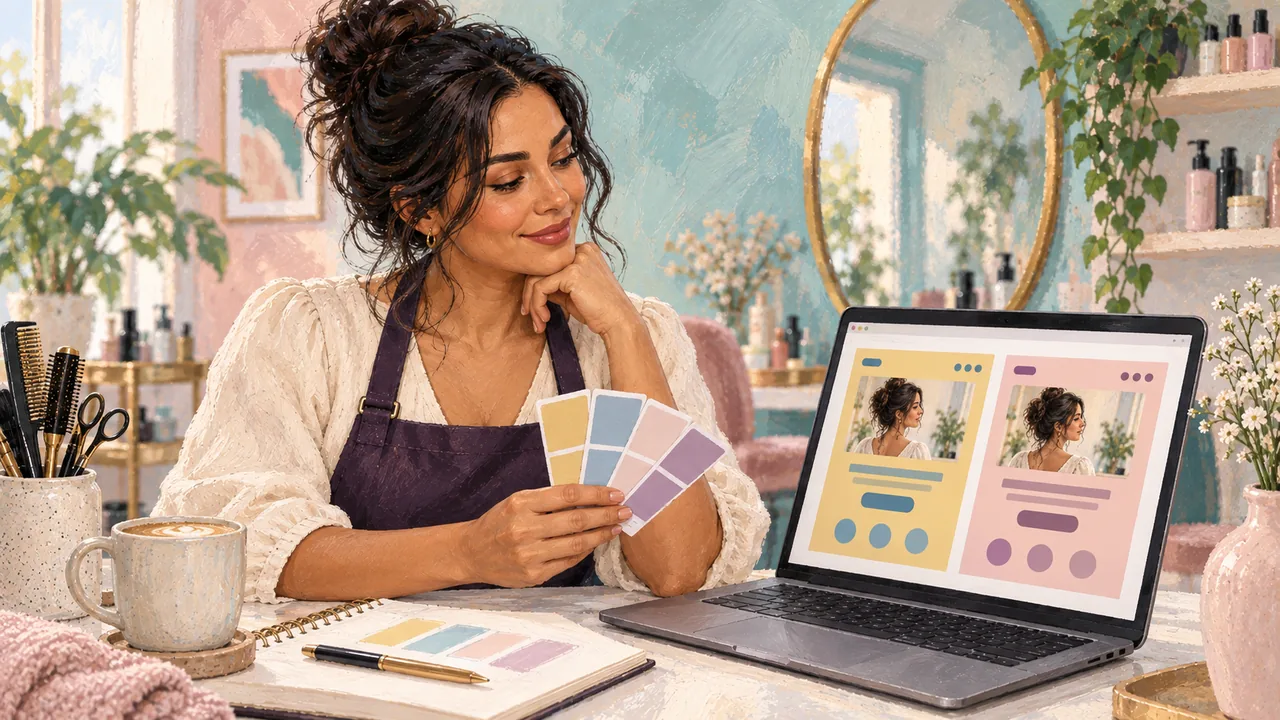
Your website should feel like your business. We’ve added colour palettes to JENA’s website templates, so if the layout works but the colours don’t quite suit you, you can choose a different look.
For independent hair and beauty professionals, that might mean making your booking website feel more like your home salon, treatment room or the work you share on Instagram.
Each template has its own selection of palettes. That gives you a choice of looks designed to work with the template, without having to pick every colour yourself.
I’ve recorded a short walkthrough using Clare’s website. Here’s what changes, and where to find the settings.
Watch the before-and-after walkthrough →
Still deciding what your website needs? Our guide to choosing a booking app with your own website explains what to look for, from your branding to the client booking journey.
Same website, a different feel
In the example, Clare’s website starts with a yellow background and blue text. The second version uses a pink background and purple text.
The image, business name and layout stay the same. The colours change how the page feels.
That’s useful if you like the structure of your website but want it to look closer to the rest of your business. You can compare the available palettes with your photos, logo and the colours you already use on social media.
You don’t need to change everything at once. Start by looking at the palettes for the template you’re already using.
How to change your website colours in JENA
- Open JENA and tap the menu at the top left.
- Select My Website.
- Under Design & branding, open Color Theme.
- Choose from the palettes available for your current template. Use the desktop and mobile previews to compare them.
- Tap Save to keep your choice.
The interface currently calls this setting “Color Theme”. It changes the palette for the selected template, rather than asking you to redesign the page.
After saving, open your own website and check the result with your business content. The template previews help you compare looks, but your own photos and words are what clients will see.
Choosing colours for your hair or beauty website
Start with what you already have. If your logo, photos and social posts have a recognisable look, choose a palette that sits comfortably alongside them.
If you’re a self-employed hairdresser, compare the colours with the hair photos you use to show your work. For a beauty therapist or nail technician, look at how the palette sits alongside your treatment room or close-up images. Your photos should still be easy to see, without the background competing for attention.
For example, look at the main photo on your homepage next to the background colour. Do they work together? Does the text stand out clearly? Can you quickly spot the booking button?
Check on a phone as well as a larger screen. A colour combination you like should still make the important information easy to find.
You don’t have to copy Clare’s colours. Her before and after shows the effect of a palette change. The right choice for your business may look quite different.
What the colour options include
This feature gives you a selection of palettes for each template. The available choices depend on the template you’ve selected.
It isn’t an unrestricted colour picker where you enter any colour code. Instead, you choose from combinations created for that template.
Changing the palette doesn’t require replacing the photos or rewriting the page. You can keep the content you’ve already added and choose a different look around it.
Try it on your own website
If you’ve already set up your JENA website, open My Website and explore the colour options for your template.
If you’re new to JENA, you can start by exploring the website and booking tools together.
The design is only part of the experience. Take a look at JENA’s online booking tools to see how clients can choose an appointment once they’ve found your website.